What is the booking feature for?
With the booking feature, participants can register for specific program sessions, such as lectures, workshops, or other event activities. Organizers can set a maximum number of participants for each session if required. This feature can be used in conjunction with ticket sales or simply to manage whether attendees of a hybrid event participate online or on-site.
Creating Bookings
If you would like to manage ticket bookings for your event, or require participants to register for either online or on-site attendance, the Booking feature can help you with this.
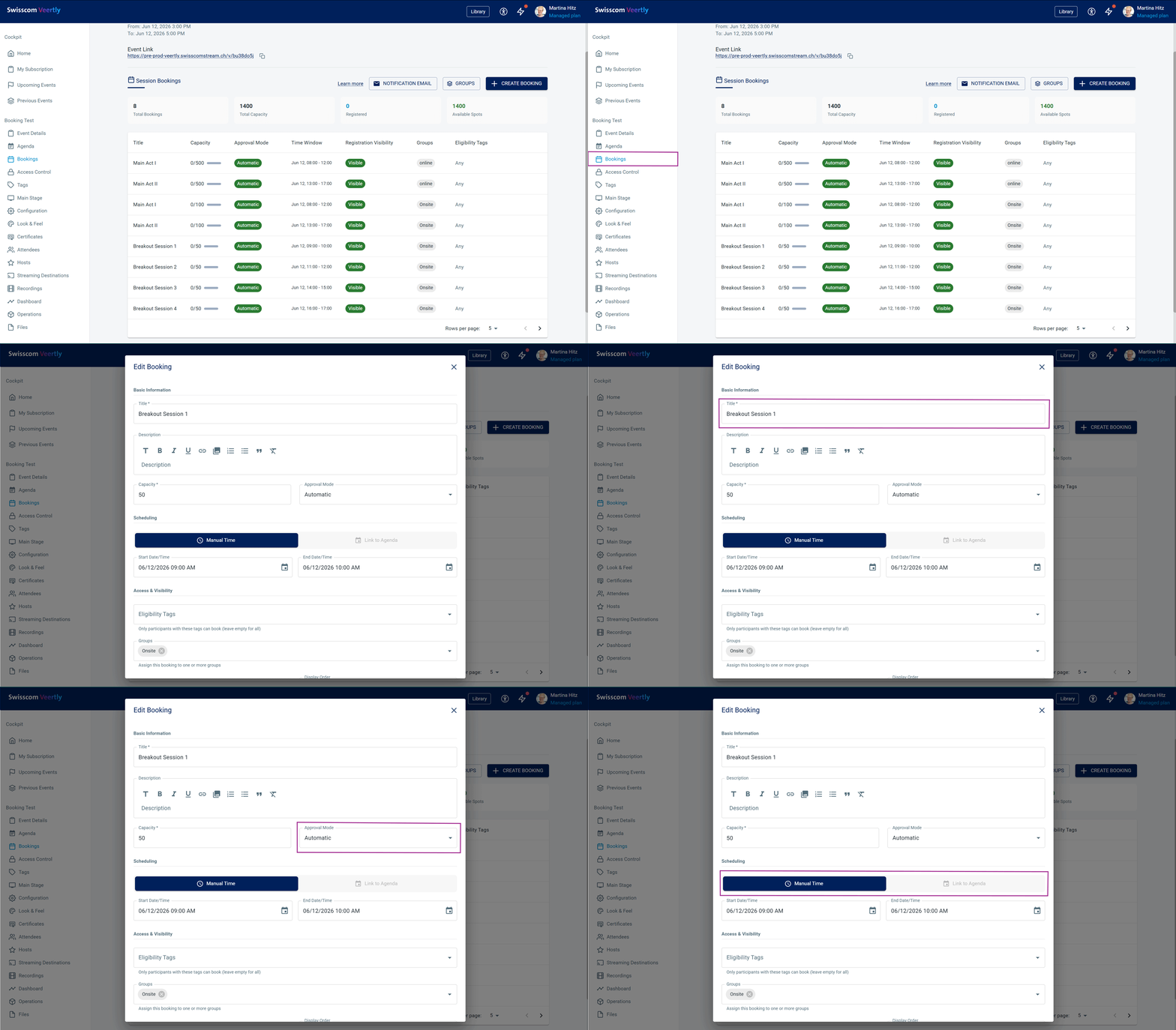
To create a booking, navigate to Bookings via the Cockpit. When creating a new booking, you can configure the following settings in addition to the title and description:
- Capacity: The maximum number of participants who can register for this booking.
- Approval Mode: Whether bookings are approved automatically or must be manually confirmed by the host.
- Scheduling: Whether participants can freely select the date and time for the booking, or whether the booking is linked to a pre-defined agenda item.
- Access & Visibility: Whether only guests with a specific tag can view and book the booking.
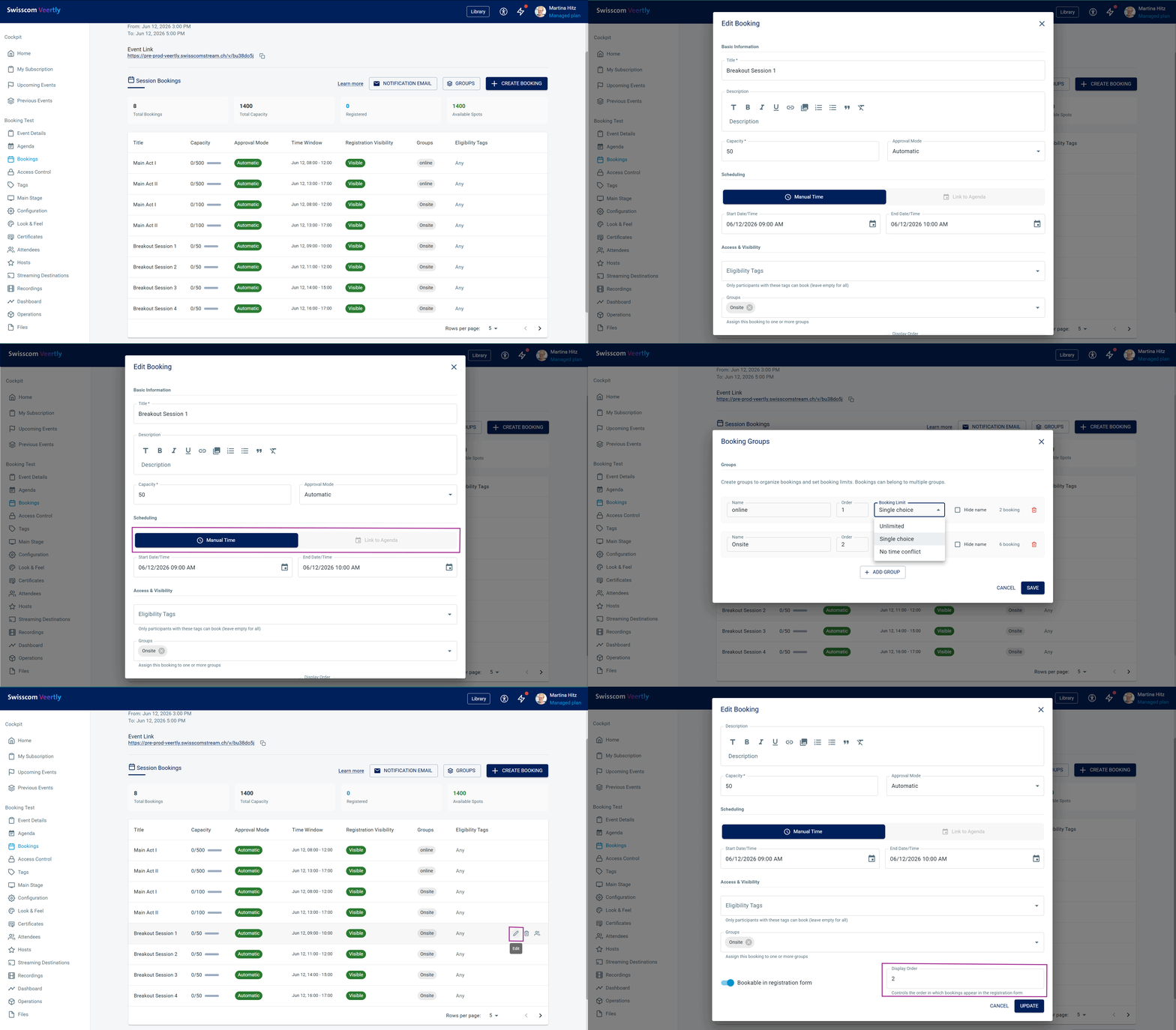
After creating the booking, you can create a group to organize related bookings. Within these groups, you can define one of the following booking rules:
- Unlimited: Participants can make as many bookings as they want within the group.
- Single Choice: Participants can only make one booking within the group.
- No Time Conflict: Participants can make multiple bookings within the group, provided the bookings do not overlap in time.
Once the groups have been created, you can edit individual bookings to assign them to a group and define their order within that group.
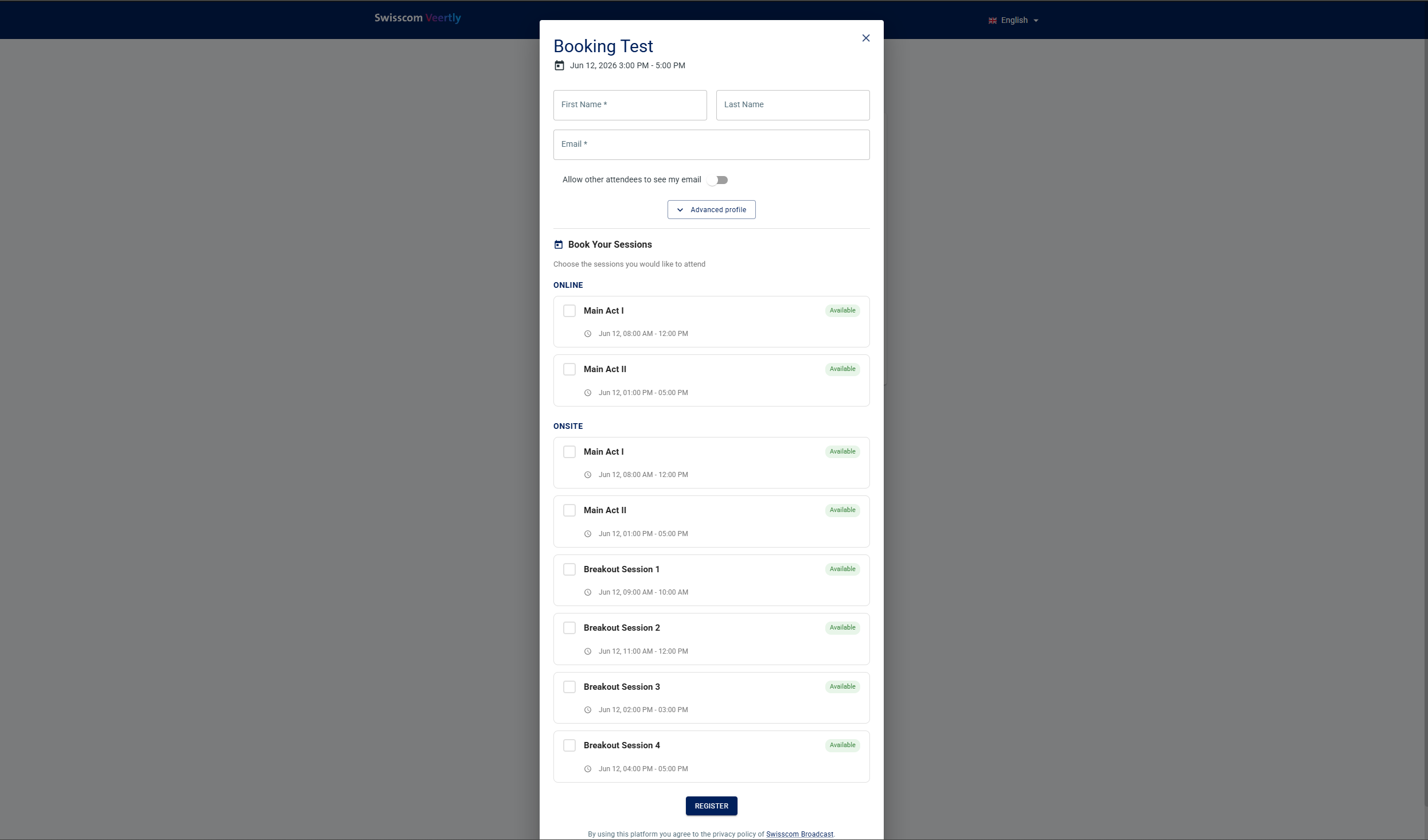
If the "Bookable in Registration Form" toggle is activated, your registration form will appear as follows.
Show Bookings in Email Templates
If your event uses registration and/or email invitations, you can display a participant’s current bookings in the registration confirmation email or invitation email by adding the following placeholder to the email template:
{{#if bookings.length}}{{#each bookings}}{{this.title}} – {{this.startDateShort}}, {{this.startTime}}–{{this.endTime}}<br />{{/each}}{{/if}} |
If any bookings already exist, they will be displayed in the email.

or

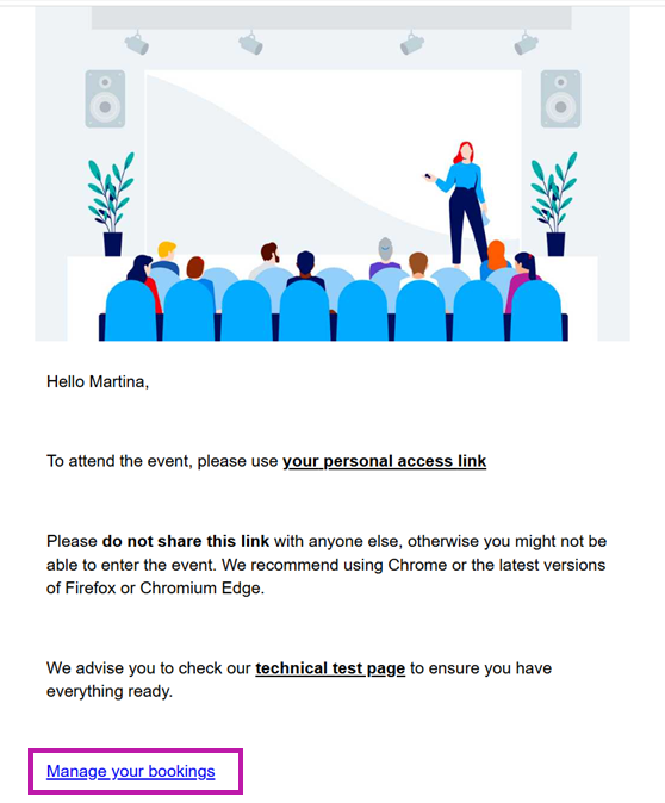
Participants can update their bookings at any time using the "Manage Your Bookings" link.
Was this article helpful?
That’s Great!
Thank you for your feedback
Sorry! We couldn't be helpful
Thank you for your feedback
Feedback sent
We appreciate your effort and will try to fix the article